Run your first assessment
A first pass takes about 45 minutes.
Before you start
Bring one person who knows how IT is actually run, not only how it is written down. You will answer faster and more honestly with them in the room.
You do not need evidence ready. Documents can be uploaded against any answer at any time, including after you finish, and a first pass without them is still a real result.
If a consultant is running the assessment on your behalf, you do not answer anything. You can follow the work as it happens — see Read your report.
What the assessment asks
Each question covers one control: a single requirement, such as whether you keep an inventory of your information assets. You answer it on a five-step scale, from nothing in place at the bottom to continuously monitored and improved at the top.
The steps are not generic. Every question describes what each of its five levels means for that specific control, and the description is what you answer against — not your general sense of how mature the area feels. Select a level and the guidance for it appears beneath the scale. Before you select anything, that space reads Select an option to see guidance.
Some assessments ask each control once. Others ask it twice.
This follows from the question library behind the assessment, not from anything you set, and you can see which you have as soon as the first question opens: one scale, or two side by side.
-
One scale. One answer covers the control. Read the level descriptions closely here — where a control is asked once, its ladder usually folds documentation, training and follow-up into the higher levels, so something that is done but written down nowhere sits lower than most people first assume.
-
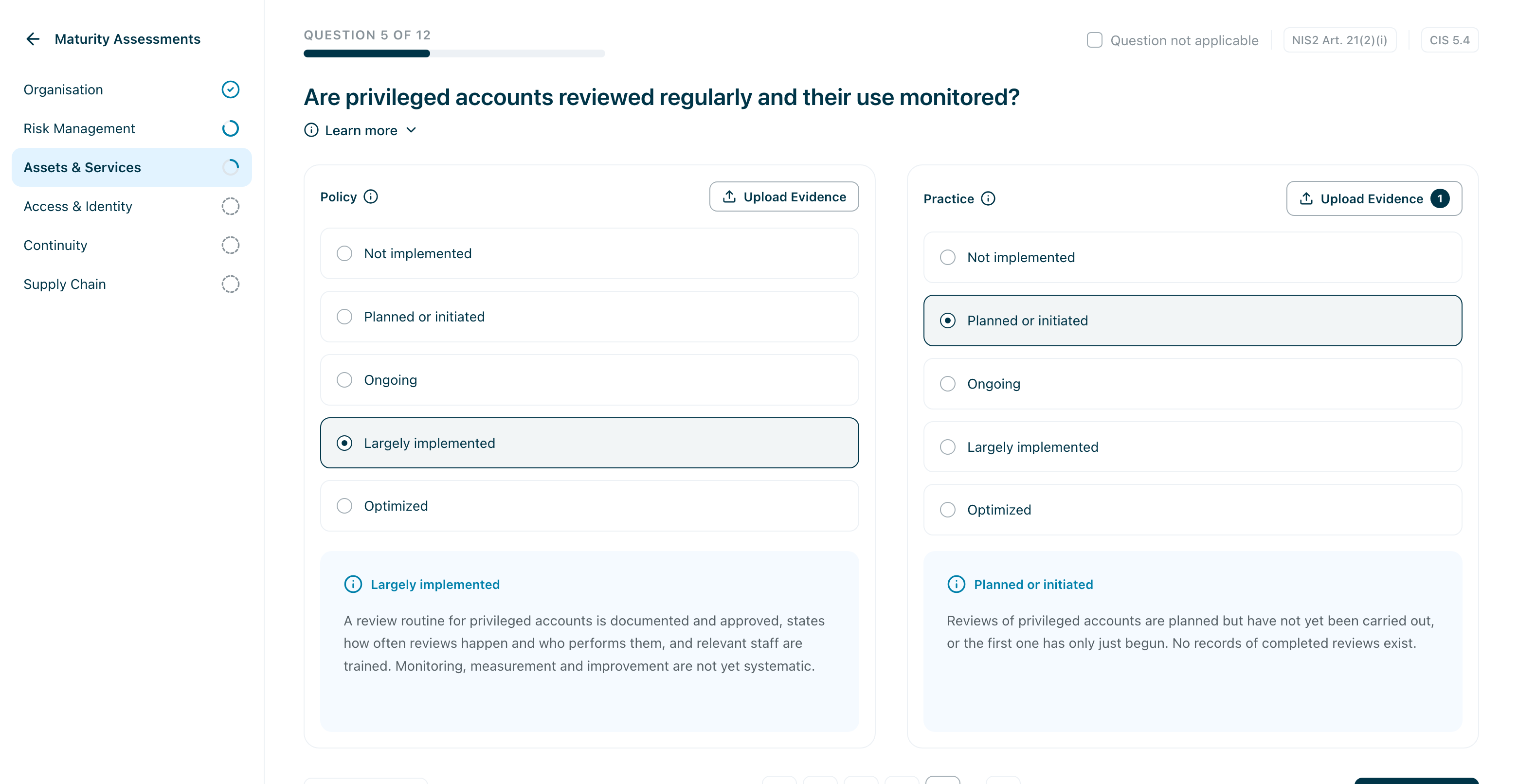
Two scales — Policy and Practice. The same question, answered twice. Policy is what your organisation has formally decided and written down; answer it on what the documentation requires, not on how consistently it is followed. Practice is what actually happens day to day; answer it on what is really done, even where no document requires it.
Where an assessment asks both, answering them the same is not the safe choice — it is usually the wrong one. A written backup routine nobody follows is a high Policy and a low Practice, and that distance is one of the most useful things the assessment produces. Averaging it away hides the gap you came to find.
Starting it
Go to Maturity Assessments and choose Start new assessment.
Pick a framework. This decides which questions you are asked. The list shows what you can run today — it grows as libraries are added, and it includes any library your partner has brought with them.
If more than one applies to you, start with whichever you are most accountable to, or whichever has a date attached to it. The choice is not a commitment: your answers are scored against every framework the questions touch, so one assessment usually tells you where you stand against several at once, and you can run further assessments whenever you like.
You can give the assessment a name. Leave it blank and it takes the framework’s name, which is enough until you are running several at once.
Choose Start Assessment. The assessment opens at the first question, with the categories listed alongside it. That list is your map: it shows how far each category has come and lets you move between them in any order.
The question screen
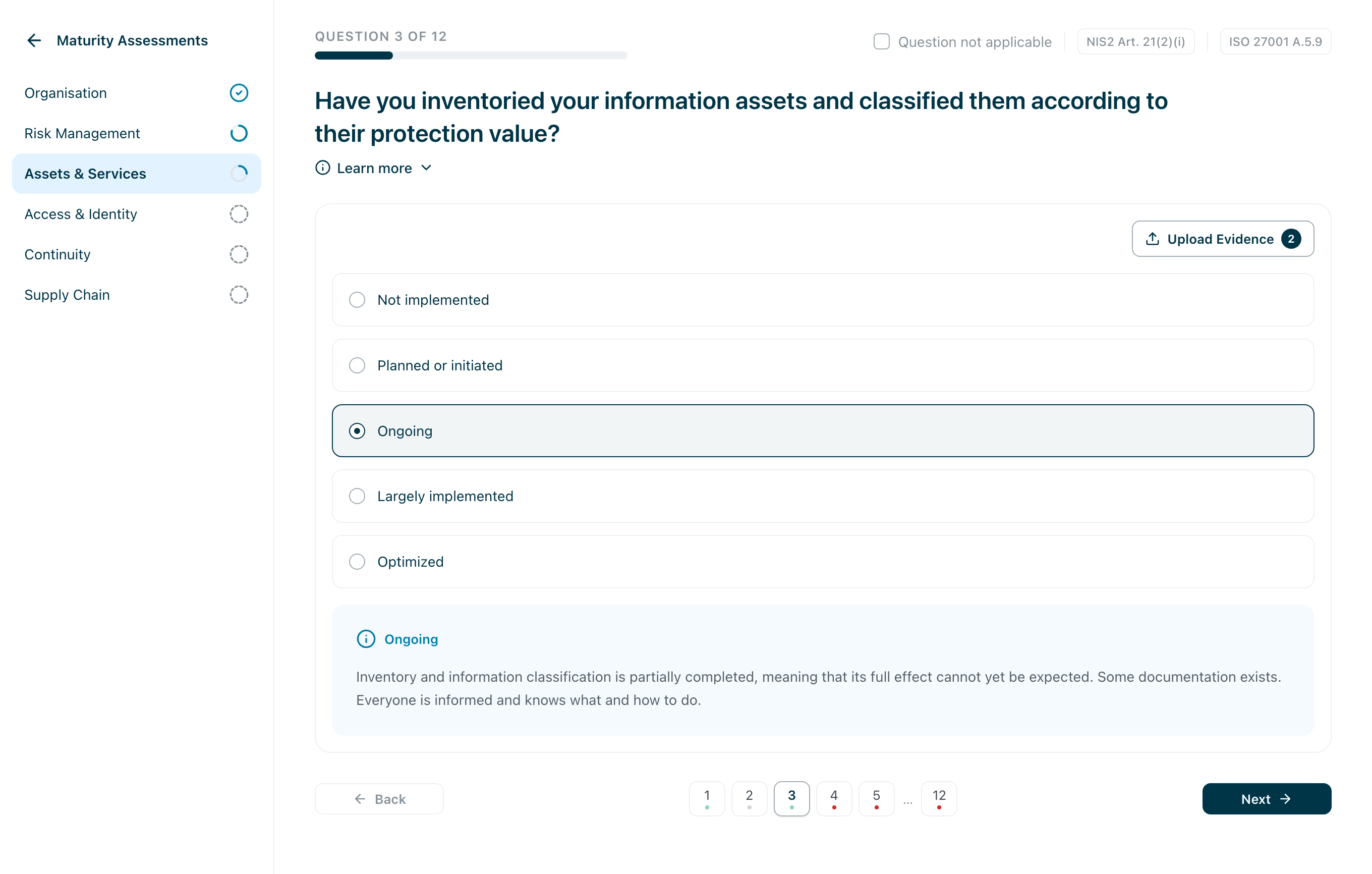
Working from the top:
- Question 3 of 12 and a progress bar — your position within the category you are in, not the assessment as a whole. The category list on the left tracks the whole.
- Framework chips — the passages this control assesses, so you can see why it is being asked and what it answers to.
- Question not applicable — see below.
- The question, with Learn more beneath it: a longer explanation of what is being asked, why it matters and what each level means in full. Open it the first time you meet an unfamiliar area.
- The levels, as rows you choose between. Selecting one saves it immediately; clicking the same row again clears it.
- Guidance for the level you are on, in the blue panel below the rows. It follows your pointer as you consider the options, so you can read what each one would mean before committing to it.
- Upload Evidence — documents supporting this control, in a dialog. The button carries a count once files are attached. Where a question has both Policy and Practice, each half has its own.
Two scales instead of one, where the assessment asks the control both ways:
What counts as evidence
Evidence is a document showing that the control exists, or that it is used in practice. Which of the two matters, because a question often has a half for each.
Policy wants what has been decided and written down: a policy, a routine or an instruction, a contract with security clauses, a minuted management decision.
Practice wants traces that it actually happens: a screenshot of the setting in the system, a log extract, a test report from a restore, minutes from a review that was carried out, an attendance list from training.
Any file type can be uploaded, and an extract from a larger document is enough. Where the control is only asked once, either kind works.
When you don’t know the answer
Three situations, three different answers.
Someone else knows. Leave the question, carry on, and come back. Nothing is lost by moving past it, and unanswered questions are counted for you at the end.
Nobody knows. That is itself the answer: the lowest level. An organisation that cannot establish whether something is being done is not doing it in any way that would hold up during an incident — and recording it honestly is what puts it on your action plan.
It genuinely does not apply. Use Question not applicable. This removes the control from your score rather than scoring it zero, so use it sparingly. We operate no industrial control systems is not applicable. We haven’t got to this yet is the lowest level, not a non-applicable control. Marking away inconvenient questions produces a flattering score and a useless plan.
Stopping and coming back
Answers save as you make them. Close the tab when you want to pause; the assessment stays in Maturity Assessments with its progress, and reopening it puts you back where you were. There is no time limit and no penalty for taking a week.
Finishing
On the last question, Next becomes Generate report. It stays inactive until every question has been answered or marked not applicable, and the line beneath it says what is outstanding — that count is the only thing standing between you and a report.

In a partner-led assessment the same button reads Finish: the consultant returns the work to you rather than generating the report from here.
Your report is generated for you. It takes a short while, and you do not have to wait on the page — you will be told when it is ready, and View report takes you there.
What happens next
The report gives you a maturity score for each category, your standing against every framework the assessment touched, and a prioritised set of recommendations. Those recommendations are grouped into objectives on your Action Plan, which is where they turn into work with owners and progress.
Changing your answers later
A finished assessment is read-only, so that the report and plan derived from it cannot quietly drift from the answers behind them.

You can still change it. Reopen & edit answers unlocks the assessment; the screen then warns you that the report and action plan are out of date until you generate the report again. Regenerate it when you are done editing — otherwise you have a plan describing an organisation that has moved on.